3-2-1 Backup Rule: Simple Backup Setup for Home or Office
The 3-2-1 backup rule written as a recipe: three copies of your files, on two kinds of storage, one kept elsewhere, plus why a synced folder isn't a backup and a cheat sheet to save.

Alex Rivera
8 de agosto de 2026 · 3 min de lectura
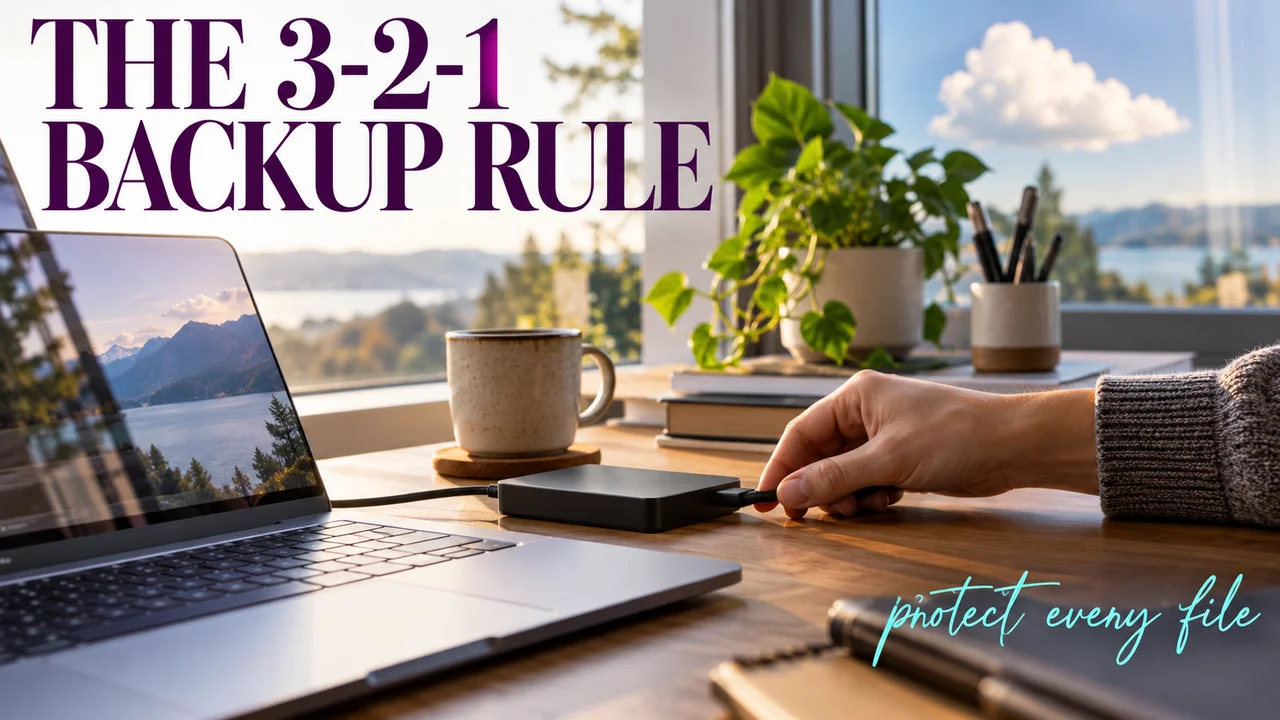
The laptop won't start, and the invoices, tax files and family photos lived only on it. Some recipes don't need a stove. This one needs two places to keep copies and an afternoon.
Here is the "3-2-1 rule" as a recipe: three copies of your files, on two kinds of storage, with one kept somewhere else.
Recipe card
- Dish: Slow-cooked 3-2-1 backup
- Serves: one home office, or a small back office
- Prep time: one afternoon, then it mostly cooks itself
- Difficulty: easy. Harder than restarting a router. Easier than losing six years of records.
Headnote: if you only have one copy of your files, you don't have a backup. You have a risk.
Ingredients
- 1 original copy: the files on your computer, as they are now.
- 1 local copy: an external drive or a "NAS," which in plain English is a small file box on your office network.
- 1 off-site copy: a cloud backup service, or a second drive that lives at another address.
- 1 backup app, built in: File History on Windows, Time Machine on a Mac.
- A pinch of labels: drive name, what's on it, the date you set it up.
Method
- Prep the list. Write down what you can't lose: documents, photos, accounting files, email archives.
- Season the local copy. Plug in the drive and turn on the built-in app. Time Machine keeps hourly, daily and weekly backups. File History covers Documents, Pictures, Videos and Desktop to start.
- Layer on the off-site copy. Point a cloud backup at the same folders. Now one fire, flood or theft can't take everything.
- Unplug and rest. Disconnect the external drive when the backup finishes. A copy that isn't connected can't be scrambled by ransomware.
- Taste-test. Restore one file to a new folder and open it. A backup you've never restored is a guess.
Chef's notes
Hidden tip: a synced folder is not a backup. "Sync" means every device holds the same thing. Delete a file you only keep in OneDrive's cloud and Microsoft says it's gone from your OneDrive on every device and online. A real backup keeps older versions.
Hidden tip: your safety net has a timer. Files deleted from OneDrive sit in its recycle bin for 30 days on a personal account, 93 days on a work or school account. After that, you need a backup.
If your backup turns out stale, you probably left the drive in a drawer for months. Next time, put "back up and unplug" on a recurring reminder.
Variation: for a busier office, swap the external drive for a NAS so several computers back up to one place.
Plenty of my clients learned this one the hard way. My cast-iron skillet gets more regular care than most office files.
Serving suggestion
Practice restoring files at least every few months, and plate the result on a sticky note: what's backed up, where, and when you last tested it. Best served boring.
Cheat sheet: the 3-2-1 backup
| Step | What to do |
|---|---|
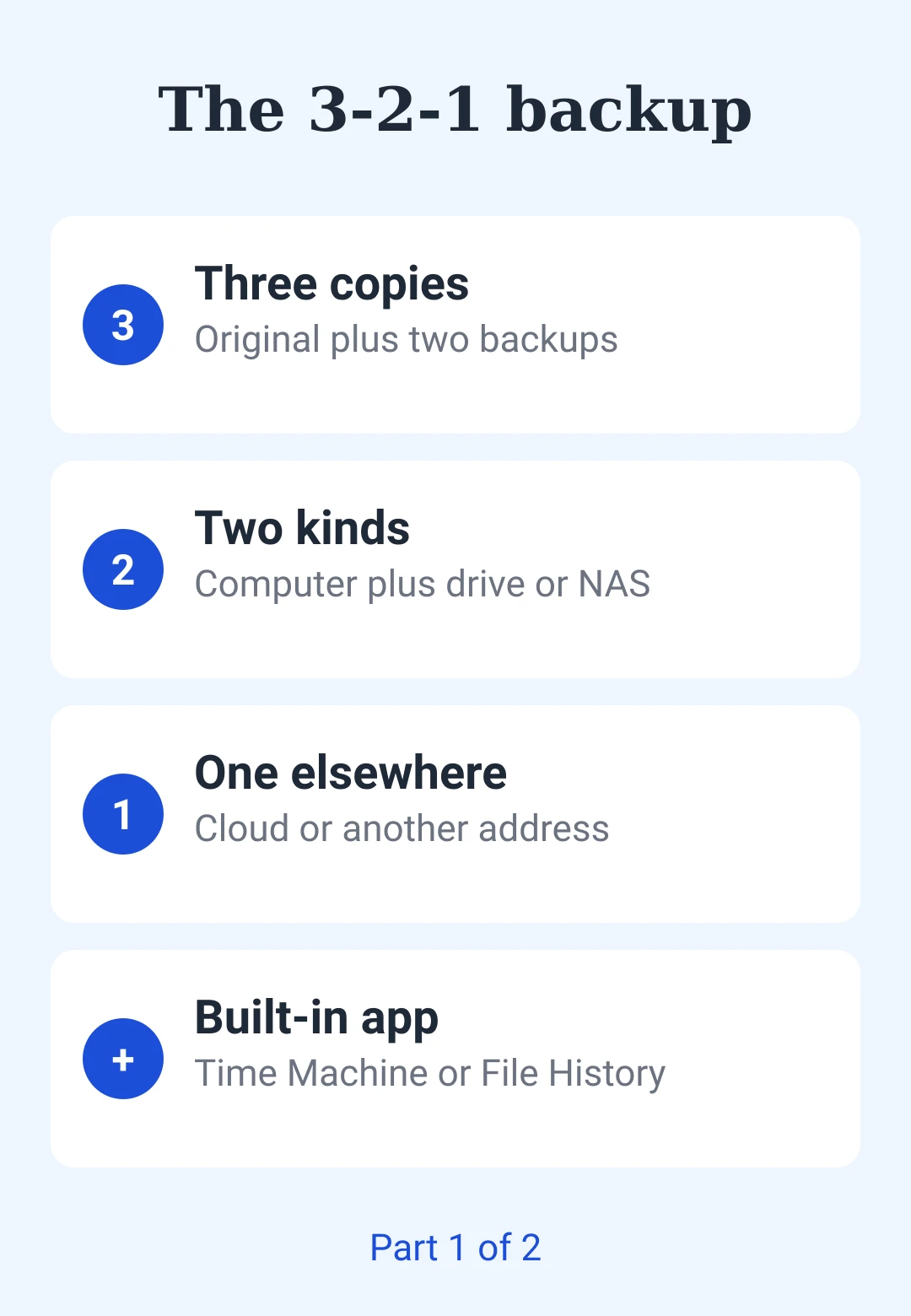
| 3 copies | Original plus two backups |
| 2 kinds | Computer plus a drive or NAS |
| 1 elsewhere | Cloud or a drive at another address |
| Built-in app | Time Machine or File History |
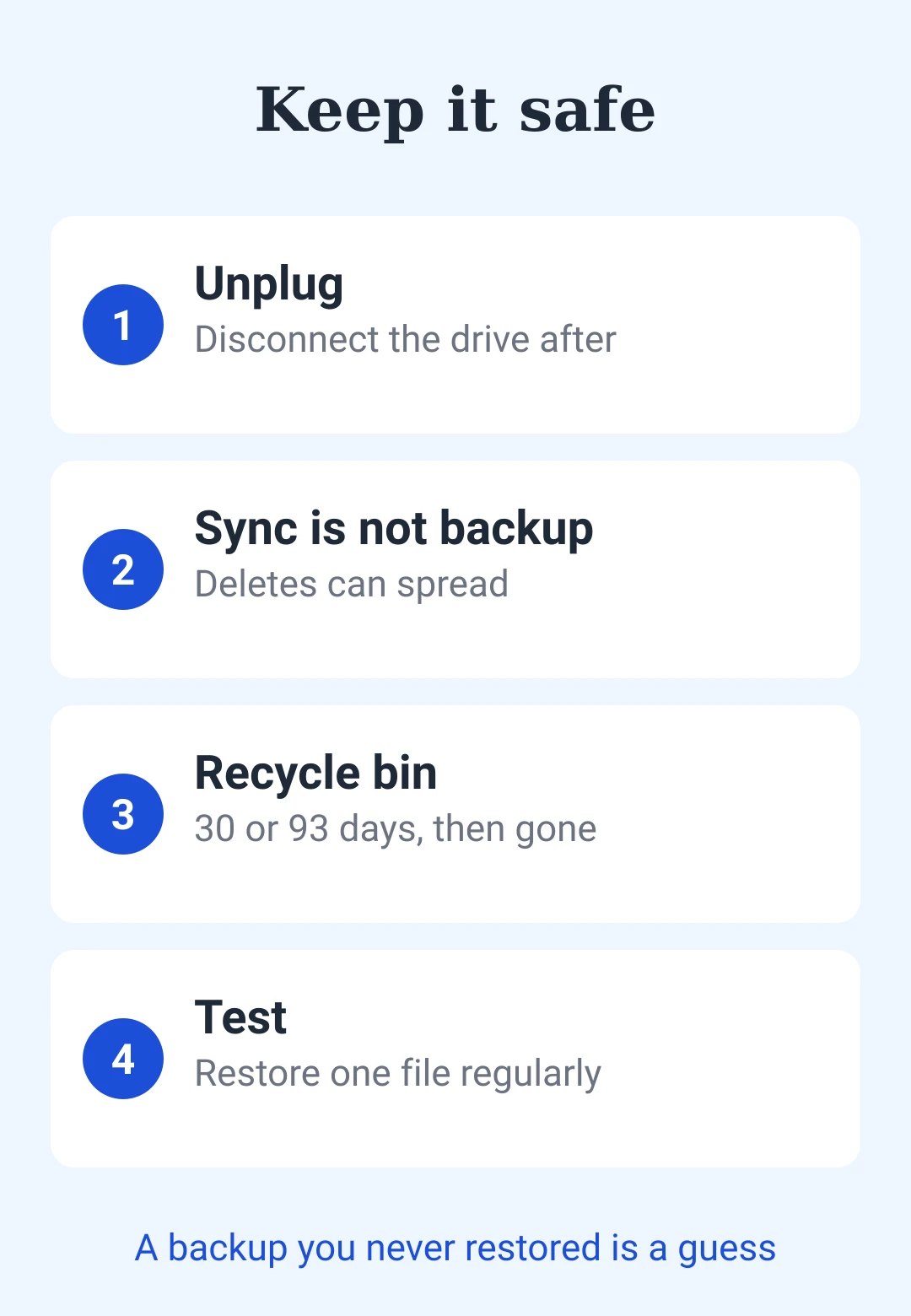
| Unplug | Disconnect the drive after each run |
| Sync ≠ backup | Deletes can spread to every device |
| Recycle bin | 30 or 93 days, then gone |
| Test | Restore one file every few months |
Clean-up: label the drive, unplug it, and close the ticket.











para dejar un comentario.
Cargando…