
How to Clean a Laptop Keyboard and Screen Safely
One common cleaning mistake, why it harms keys and screen coatings, and the safe routine laptop makers recommend, with a cheat sheet to save.

Sarah Goldberg
2026年9月19日 · 阅读约 3 分钟
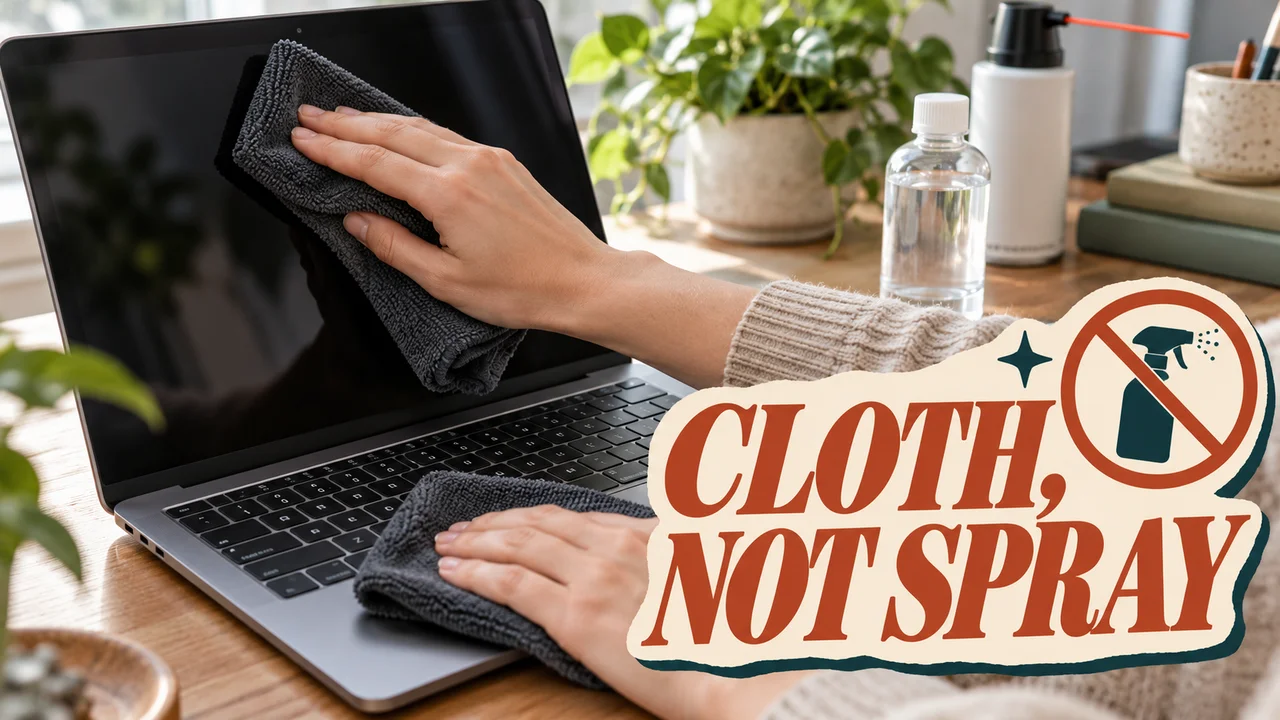
Crumbs settle between the keys, and a thumbprint lands right where you read. Most people clean both the same way, with whatever spray sits under the kitchen sink.
Below is one gentle case study of that habit, then the safe routine for keys and screen, with a cheat sheet to save.
The case file
Meet Dana. Dana wanted a laptop that looked new again before a long week of video calls, so she gave it a thorough cleaning with the supplies she trusted for her kitchen. She is a colleague of mine, and she later sent me a photo of the result with one question: what went wrong?
What she did, step by step
- She left the laptop on, so she could see the smudges against the bright screen.
- She sprayed glass cleaner straight onto the display and wiped it with a paper towel.
- She turned the compressed air can upside down to reach a stubborn crumb.
- She wiped the keys with a wet dish sponge.
Each step was reasonable on its own; that is how most kitchens get cleaned.
Where it went wrong
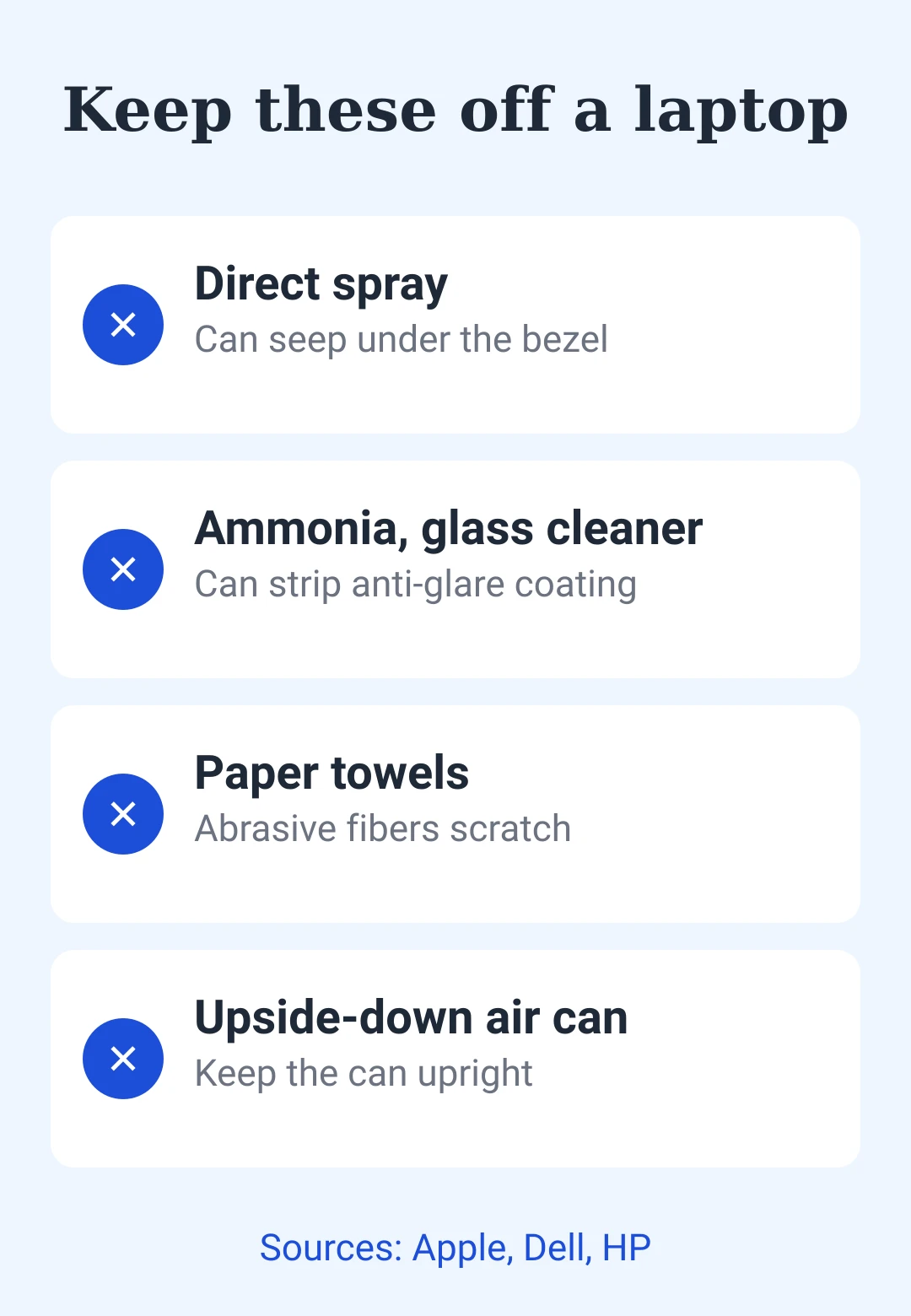
The problem wasn't effort; it was where the liquid went. Spray lands on the screen, runs down to the edge and can seep under the bezel, which is why Apple, Dell and HP all say never to spray liquid directly onto the device. A wet sponge does the same thing between keys.
The cleaner mattered too. Dell warns that window cleaners and ammonia-based solutions can strip the anti-glare coating, so a hazy patch that won't wipe off is a damaged coating, not dirt. Paper towels add fine scratches, because their fibers are abrasive. The inverted can broke Apple's own rule: keep the can upright while spraying.
The fix: a safe routine
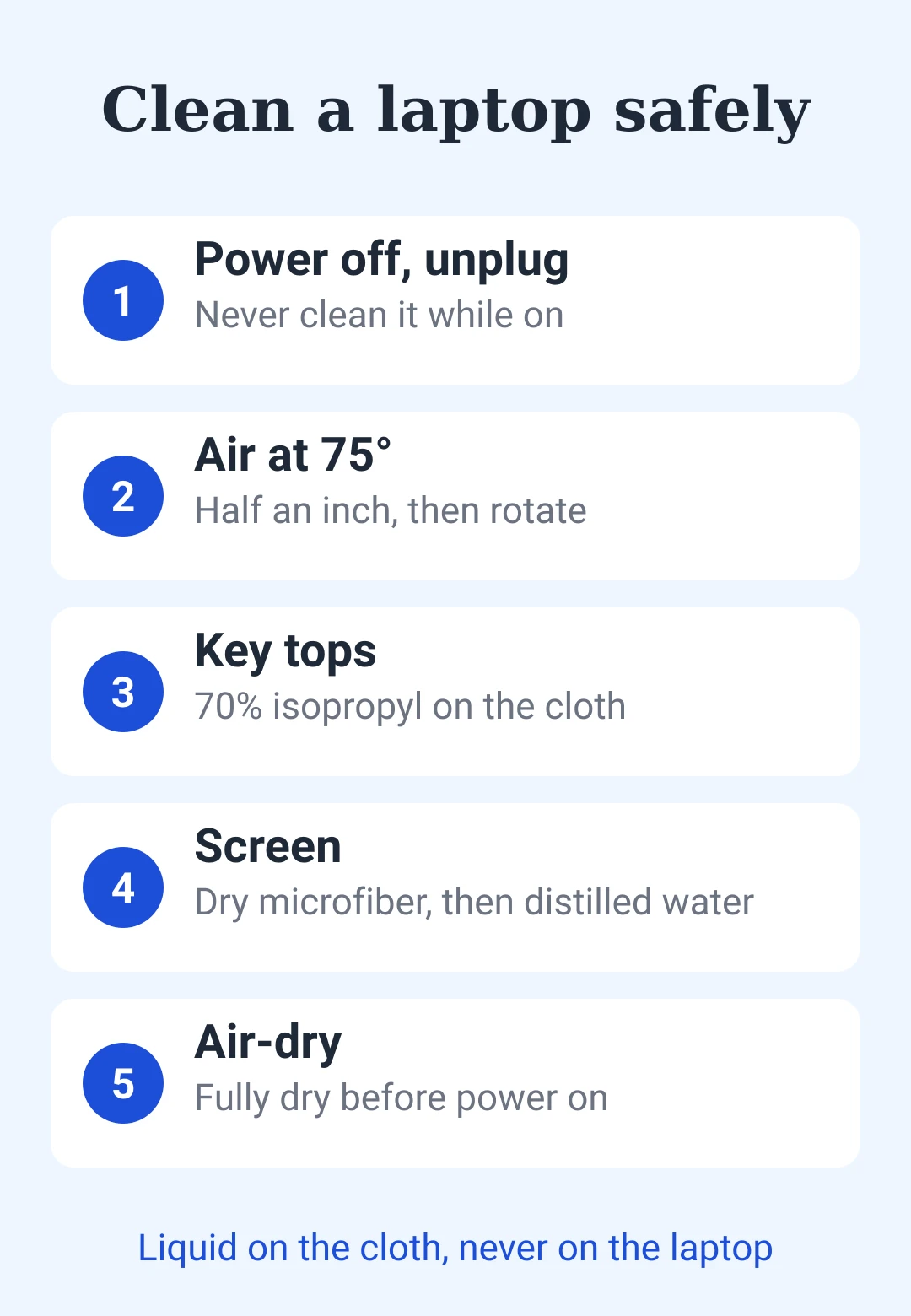
The fix was mostly subtraction. Dana now follows these steps:
- Power off and unplug. HP, Dell and Apple all say not to clean a device while it is on or plugged in.
- Keys first, with air. Tilt the open laptop to about 75 degrees, hold the straw about half an inch from the keys and sweep left to right.
- Wipe the key tops. Use a microfiber cloth lightly moistened with 70% isopropyl alcohol, moist but never dripping.
- Screen: dry cloth first. A dry microfiber cloth with very light pressure removes most dust.
- Screen: damp cloth for prints. Dampen the cloth slightly with distilled water and wipe in broad, gentle circles.
- Let it dry. Leave the screen to air-dry completely before switching back on.
Hidden tips
- Rotate the laptop, not the can. Apple's method sprays at the 75-degree tilt, then again with the laptop turned on its right side, then on its left. The tilt gives loosened crumbs a way out.
- Check for a special finish. Some Apple displays have a nano-texture glass with their own cleaning instructions; Apple says to follow those instead of the general routine.
The general rule
The rule to take from Dana's case: the liquid goes on the cloth, never on the laptop. Early warning sign: a hazy patch that stays after a gentle damp wipe. Stop scrubbing there; more pressure and stronger cleaners will not bring a coating back.
Save this: a clean laptop, safely
| Step | Do this |
|---|---|
| Before | Power off, unplug |
| Keys | Air at 75°, half an inch away |
| Rotate | Then right side, then left side |
| Key tops | 70% isopropyl on the cloth |
| Screen dust | Dry microfiber, light touch |
| Prints | Distilled water, damp cloth |
| Never | Spray, ammonia, paper towels |
| After | Air-dry fully, then power on |
If you recognized your own routine in Dana's, start with the simplest change: reach for a microfiber cloth and leave the spray bottle under the sink.









后即可发表评论。
加载中…