
PC Overheating? How to Fix High Temps and Loud Fans 🔥
A five-step check for a hot or loud PC, from reading temps and finding busy apps to dust, airflow, fan curves and thermal paste, plus a cheat sheet to save.

Kenji Mori
2026년 10월 14일 · 3분 분량
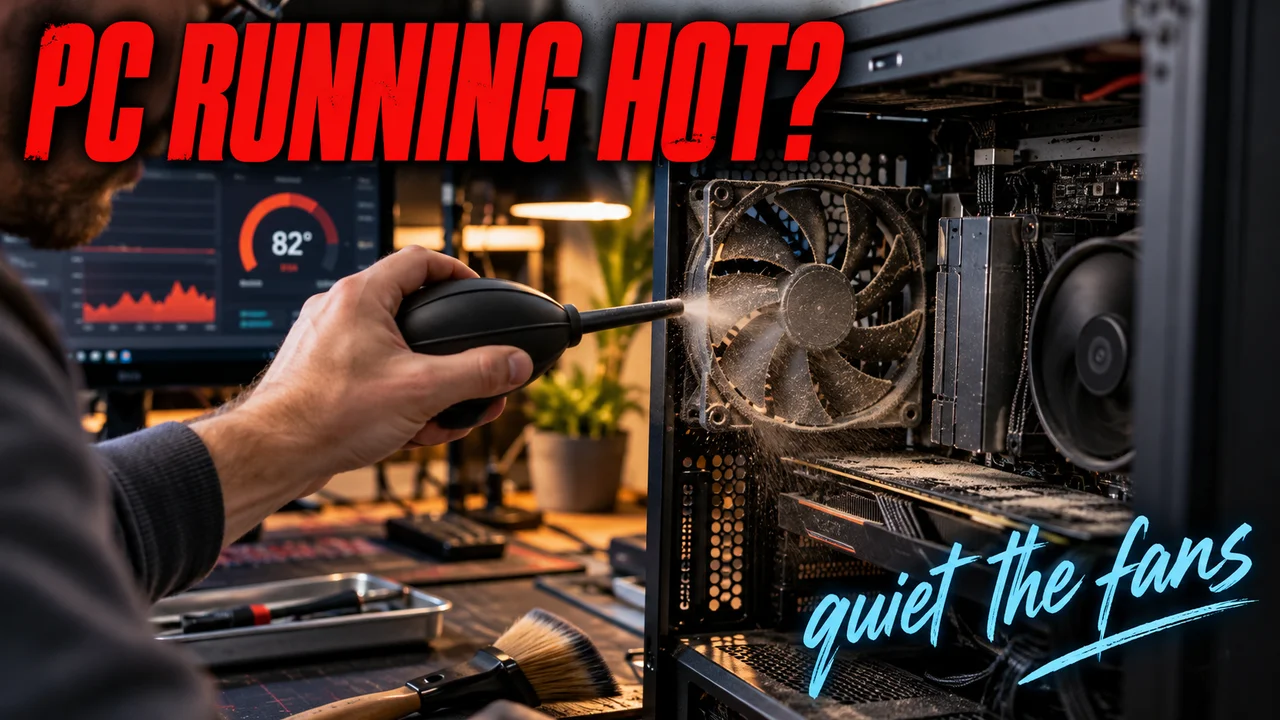
Your PC sounds like a hair dryer, and the air under the desk feels warm. Then the game stutters right in the middle of a fight.
Below: a step-by-step check for heat and noise, from free and fast to fiddly.
Step 1: Read the temperature first
Open a monitoring app and watch CPU and GPU temps at idle and in a game.
- The limit: Intel says its chips usually top out between 100°C and 110°C. There the CPU slows itself down. That's thermal throttling.
- Not a panic number: Intel adds that hitting the max under long, heavy work isn't automatically a problem.
Real problem? Hitting the limit in light tasks. Or fans screaming while you browse.
Step 2: Loud at idle? Check what's running
- Open Task Manager (Ctrl+Alt+Delete), click "More details" and sort by CPU.
- Near 100% with nothing open? Close or end that app.
- In Windows 11, go to Settings, System, Power and set Power mode to Balanced or Best power efficiency. A little less speed, less noise.
Step 3: Clean out the dust
Dust on fans, filters and fins blocks air. Less air, higher temps, louder fans.
- Shut down, unplug everything, remove the side panel.
- Pull the dust filters and wipe them.
- Wipe fan blades with a microfiber cloth. A cotton swab with a little isopropyl alcohol gets the gaps.
- Finish with compressed air in short bursts, about 6 inches (15 cm) away.
Hidden tip: hold each fan's blades still while you blow air at it. PC builders' guides all say don't let canned air free-spin a fan. And keep the can upright! Can makers warn that tilting or shaking it can spray liquid propellant onto your parts.
How often? Puget Systems suggests a full dust-out about once a year.
Step 4: Fix airflow and fan curves
- One direction: air in at the front, out the back or top. Slightly more intake than exhaust keeps air coming through the filters.
- Fan curve: in the BIOS, raise each fan until you hear it. Stay below that speed until temps climb, then ramp to 100% near 90°C.
- Bigger, slower fans: a 140mm fan at low speed can move as much air as a faster 120mm fan, with less noise.
- Rattle? A fan touching the case frame buzzes. Rubber mounts fix that.
Hidden tip: GPU fans dead still at idle? Usually not broken. Many cards stop their fans at low temps on purpose. MSI's version stays off below about 60°C. They should still spin briefly at startup.
Step 5: Thermal paste comes last
Clean case, good airflow, still hitting the limit in normal use? Now repaste. It's not a yearly chore. Arctic rates its MX-4 for up to 8 years. My rule: cooler off means fresh paste.
What lasts, what fades
On my build whiteboard, more friends now write "quiet" instead of "RGB." Lowkey the best trend in PC building! My bet: fan curves and big, slow fans stay, because they fix noise at the source. Every fan pinned at 100% "just in case" fades.
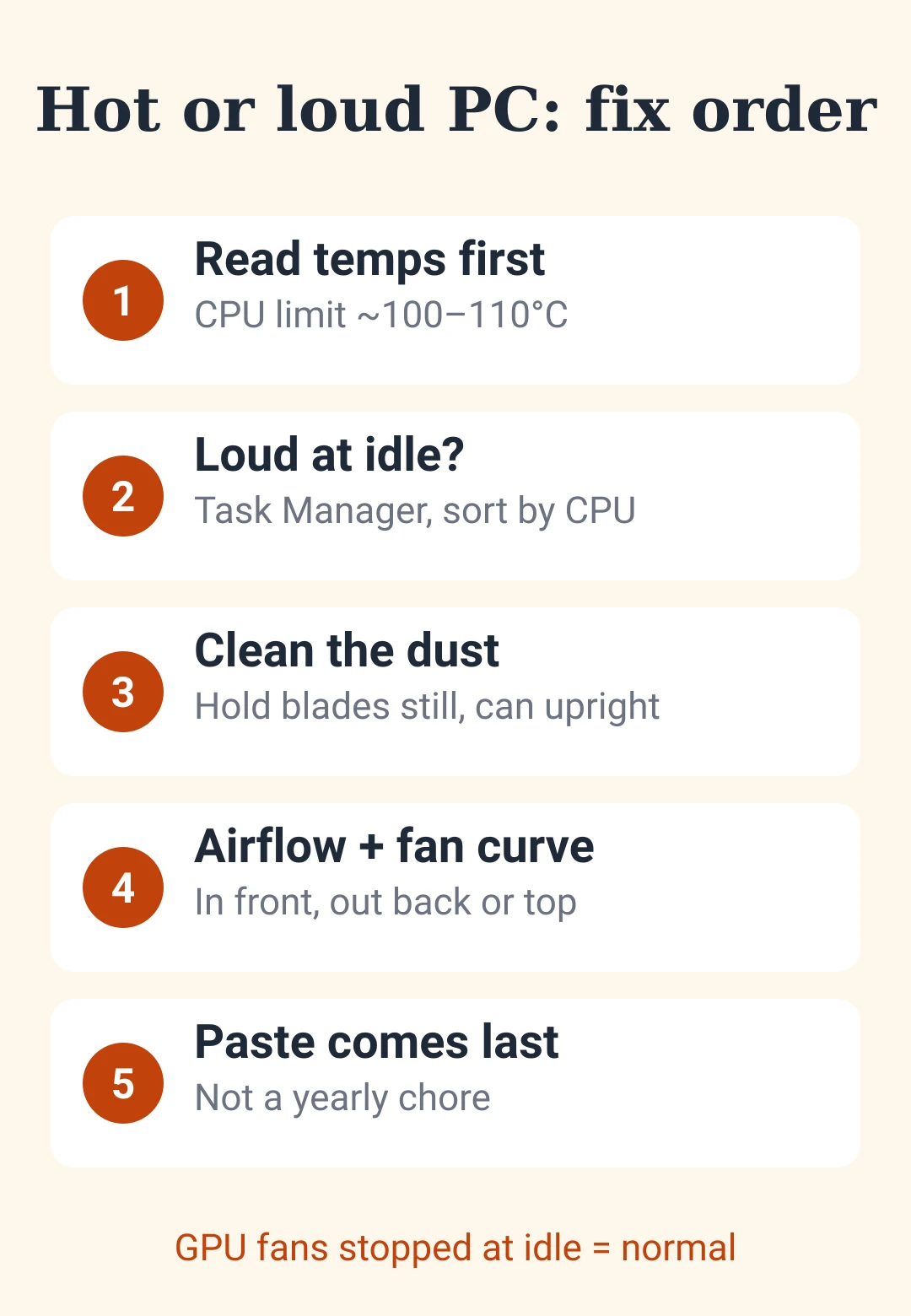
Cheat sheet: hot or loud PC
| Check | Do this |
|---|---|
| Temps | Check first. CPU limit ~100–110°C |
| Loud at idle | Task Manager, sort by CPU |
| Power mode | Balanced or Best power efficiency |
| Dust | Filters, blades, fins, once a year |
| Compressed air | Hold blades still, can upright |
| Airflow | In front, out back or top |
| Fan curve | Quiet until hot, 100% near 90°C |
| GPU fans stopped | Normal at low temps |
| Thermal paste | Last step, not a yearly chore |












댓글을 남기려면 해 주세요.
불러오는 중…