
Phone Storage Full? 8 Ways to Free Up Space 📱
Eight quick ways to clear phone storage on iPhone and Android without losing photos or app data, five common myths ruled on, and a cheat sheet to save.

Jordan Lee
11 octobre 2026 · 3 min de lecture

The "Storage Almost Full" alert always pops up right as you go to take a photo. The usual panic moves — deleting a few pictures, swiping apps closed — barely budge the number.
Here are eight quick ways to clear space safely, with photos backed up first and a few popular myths ruled on along the way.
Myth: "Swiping apps closed frees up space"
Verdict: false. Closing an app stops it running; its files stay put. Apple says to close an app only if it's unresponsive.
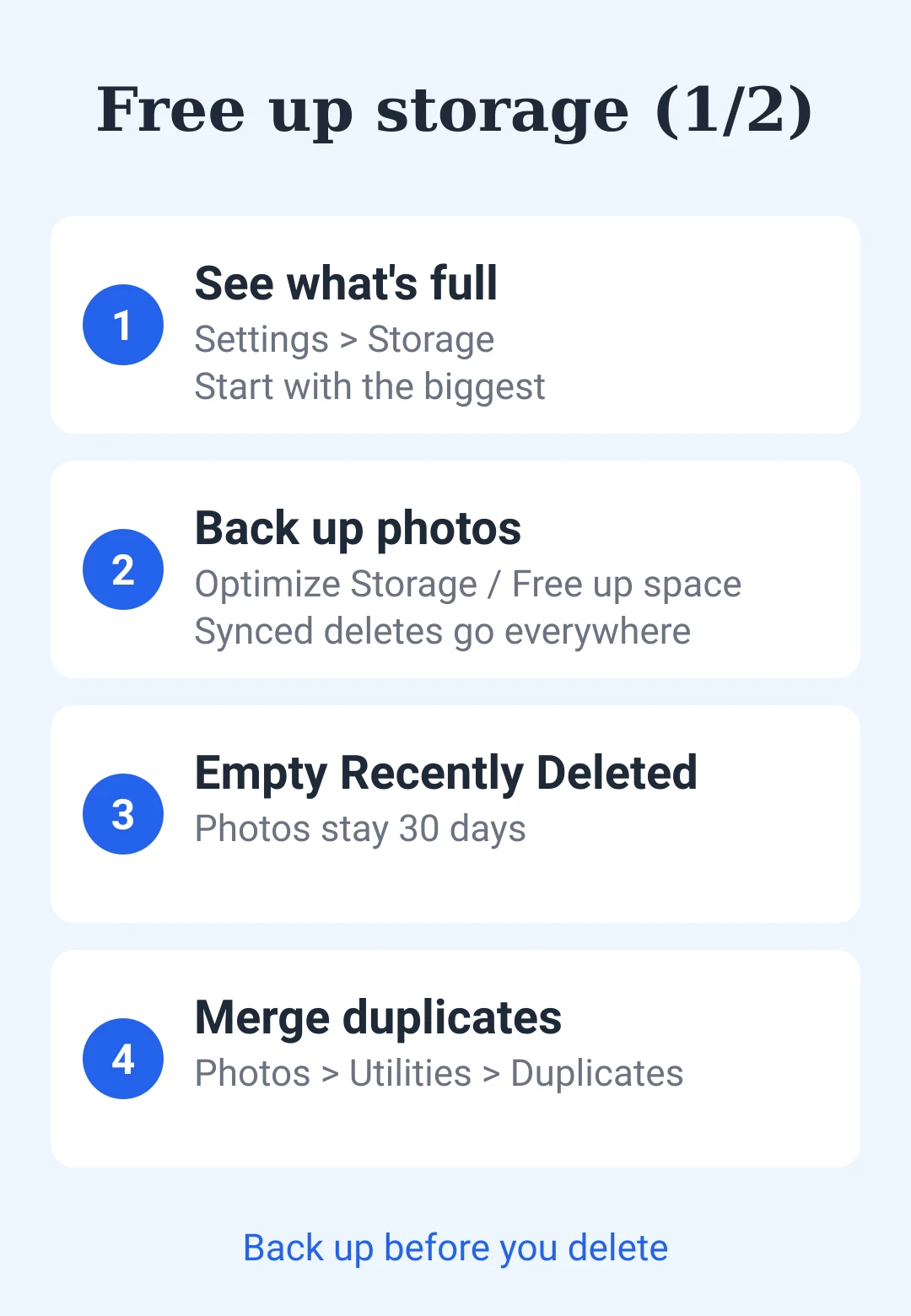
Find out what's actually full
iPhone: Settings > General > iPhone Storage. Android: Settings > Storage. Both show what's taking room. Start at the top of the list.
Back up photos the safe way
Myth: "Once it's in the cloud, delete it from the phone." Verdict: risky. iCloud Photos syncs rather than archives, so deleting on your iPhone deletes everywhere. Deleting inside Google Photos works the same way.
- iPhone: turn on iCloud Photos, then Optimize iPhone Storage. The phone keeps space-saving versions; originals stay in iCloud.
- Android: Google Photos > profile picture > Free up space. It removes only backed-up items, which stay viewable in Google Photos.
Check your cloud has room first.
Empty Recently Deleted
Myth: "Deleting a photo frees space right away." Verdict: not yet. iPhone's Recently Deleted and Google Photos' Trash both hold photos for 30 days. Empty them once you're sure.
Hidden tip: merge duplicates
The iPhone Photos app already hunts duplicates for you, buried three menus deep: Photos > Collections > Utilities > Duplicates, then Merge. It keeps the best-quality copy. No Duplicates entry means none were found.
Offload or archive apps you rarely open
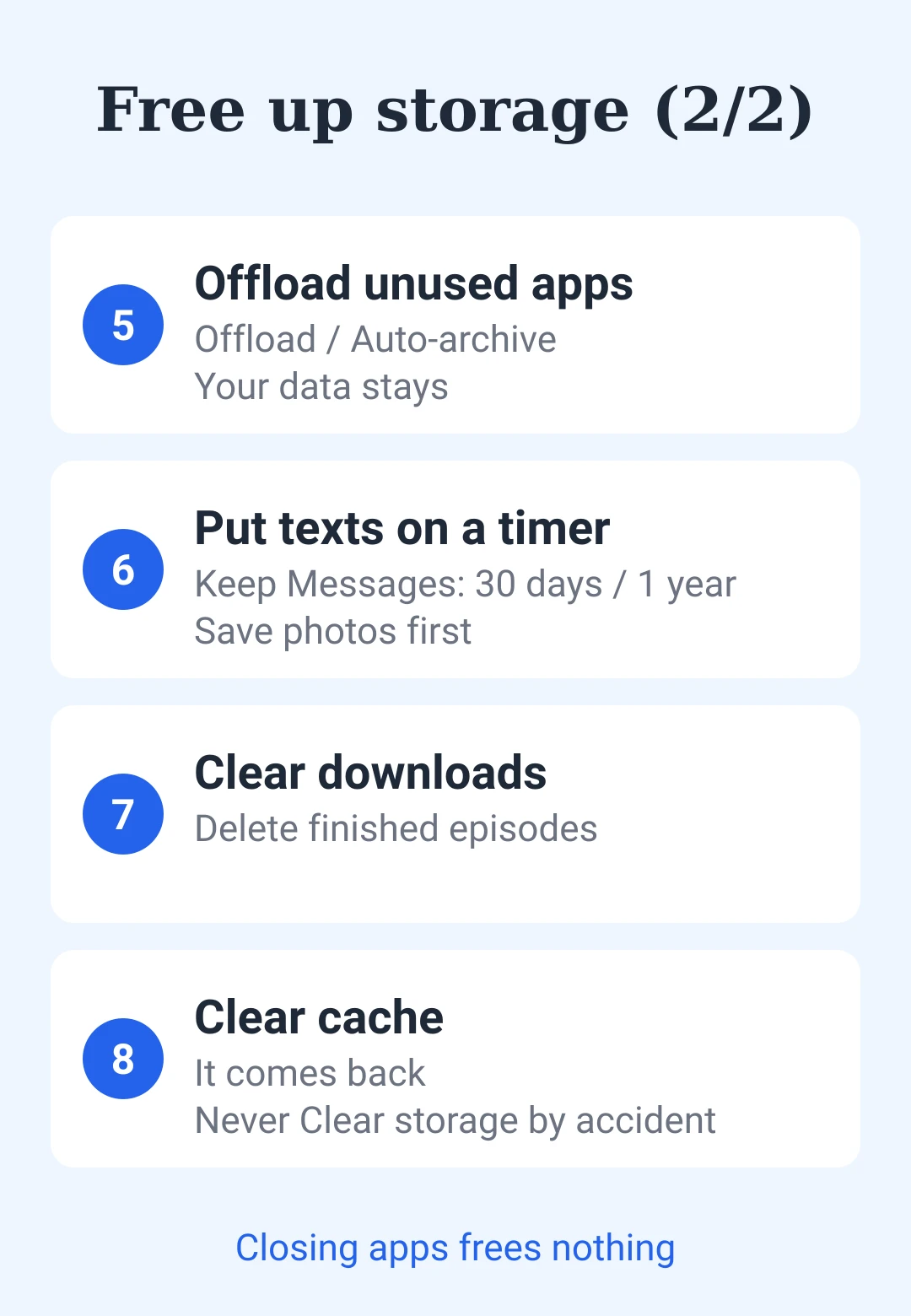
Myth: "Removing an app deletes my data." Verdict: not if you offload. iPhone's Offload App frees the app's space but keeps its documents and data. On Android, Play Store > Settings > General > Automatically archive apps keeps your data and the icon. Reinstall later and you pick up where you left off.
Put old texts on a timer
Group-chat photos and videos pile up quietly. In iPhone's Messages settings, Keep Messages offers 30 Days, 1 Year or Forever. Anything but Forever removes older conversations and attachments automatically, so save the photos you want first.
Clear forgotten downloads
Offline episodes, playlists and podcasts sit in each app's Downloads section long after you've finished them, and nothing on the main storage screen tells you which show they came from. On the three test phones by my door, that's always the folder that fills first.
Clear cache, and expect it back
Myth: "Clearing cache is a permanent fix." Verdict: half-true. On Android, Settings > Apps > the app > Storage > Clear cache deletes temporary files, and the app rebuilds them. Clear storage is different: it permanently deletes the app's data.
Save this: storage cheat sheet
| Way | Where | Watch out |
|---|---|---|
| 1. See what's full | Settings > Storage | Biggest first |
| 2. Photos | Optimize Storage / Free up space | Synced deletes go everywhere |
| 3. Recently Deleted | Photos / Trash | Kept 30 days |
| 4. Duplicates | Photos > Utilities | iPhone only |
| 5. Unused apps | Offload / Auto-archive | Data stays |
| 6. Old texts | Keep Messages | Save photos first |
| 7. Downloads | Each app's Downloads | Delete what's finished |
| 8. Cache | Android app Storage | Not Clear storage |
If you remember one thing: let the phone keep small copies instead of deleting by hand.












pour laisser un commentaire.
Chargement…