How to Make Text Bigger on a Phone or Tablet
Patricia Owens · 49 次观看 · 1个月前 · 文章
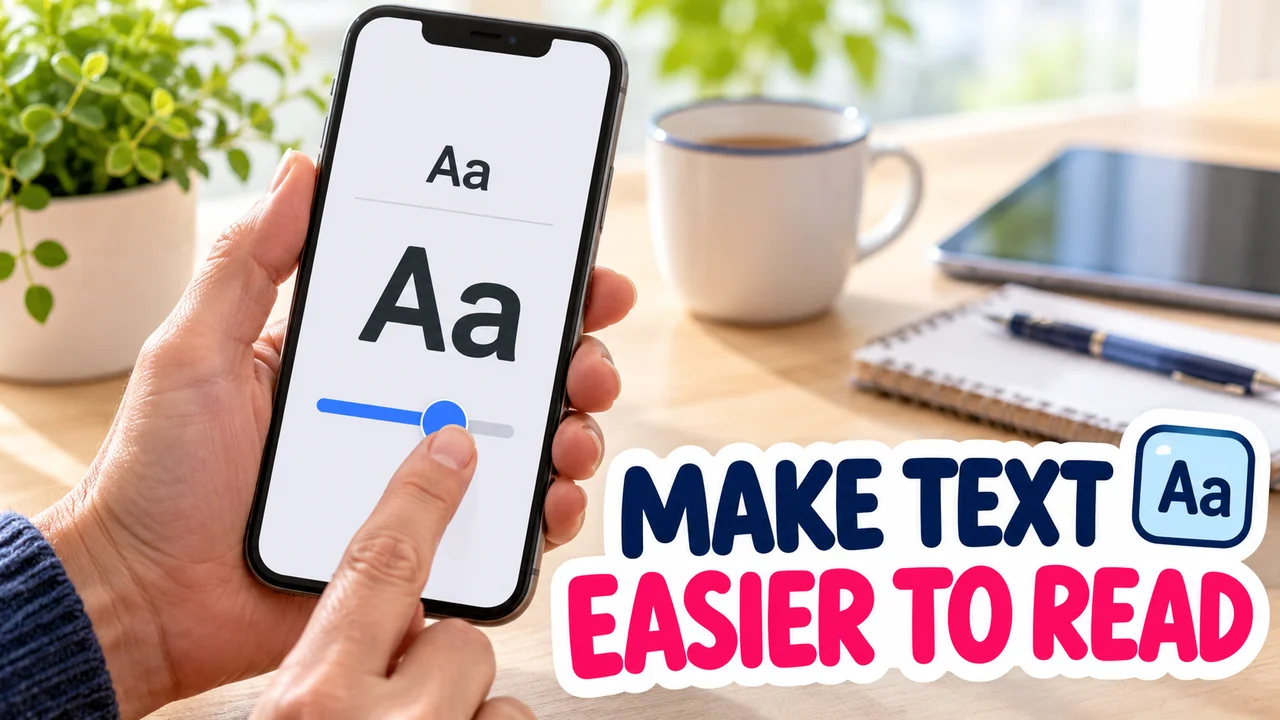
One friend's Zoom mix-up shows the difference between magnifying a screen and enlarging text, with the exact settings for bigger, bolder, clearer text on iPhone, iPad and Android, plus a cheat sheet to save.
You squint at a text message, hold the phone at arm's length, and still can't make it out. Most people then switch on the first magnifying setting they find, and that is where the trouble starts.
Here is one friend's mix-up, why it happened, and the settings that truly make text bigger on iPhone, iPad and Android.
The case: Dolores and the giant screen
Meet Dolores from my church. She wanted to read her grandson's messages without hunting for her glasses, so she opened Accessibility in Settings and switched on the first thing that sounded right: Zoom.
What she did
- Turned on Zoom.
- Tapped with three fingers. Everything grew huge.
- Dragged the screen with three fingers to find the end of each sentence.
- Couldn't make it stop, so she phoned me. (I didn't know either. Goodness.)
Where it went wrong
Zoom is a magnifying glass, not a text setting. It blows up a picture of the whole screen, so most of each page sits off the edge and you pan around to read it. Exhausting.
The letters never changed size. She was reading tiny text through a very big lens.
The fix: change the text, not the picture
First, out of Zoom: double-tap the screen with three fingers on an iPhone or iPad. Then set the real thing.
| Goal | iPhone / iPad | Android |
|---|---|---|
| Bigger text | Display & Text Size (in Accessibility) > Larger Text | Font size (type it in the Settings search bar) |
| Heavier letters | Same menu > Bold Text | Accessibility > Display size and text > Bold text |
| Bigger icons too | iPhone: Display Zoom > Larger Text | Display size (same search bar) |
| Crisper contrast | Same menu > Increase Contrast | High contrast text (Outline text on Android 16) |
Samsung Galaxy: Display > Font size and style, and Screen zoom. iPhone Display Zoom sits under Appearance (Display & Brightness on older versions).
Need more? Turn on Larger Accessibility Sizes, and step back a notch if buttons get crowded.
Hidden tips
- One app only: add the Text Size control to Control Center on an iPhone or iPad, then open it inside an app to resize just that app.
- Per-App Settings: under Accessibility, this gives one stubborn app its own text size.
The rule to take from this case
Enlarge the text at the source. Save the magnifier for the odd tiny label. Early warning sign: if you're dragging the screen around just to finish one sentence, you're zoomed, not enlarged.
Dolores now reads her messages with her glasses in her purse. Case closed!
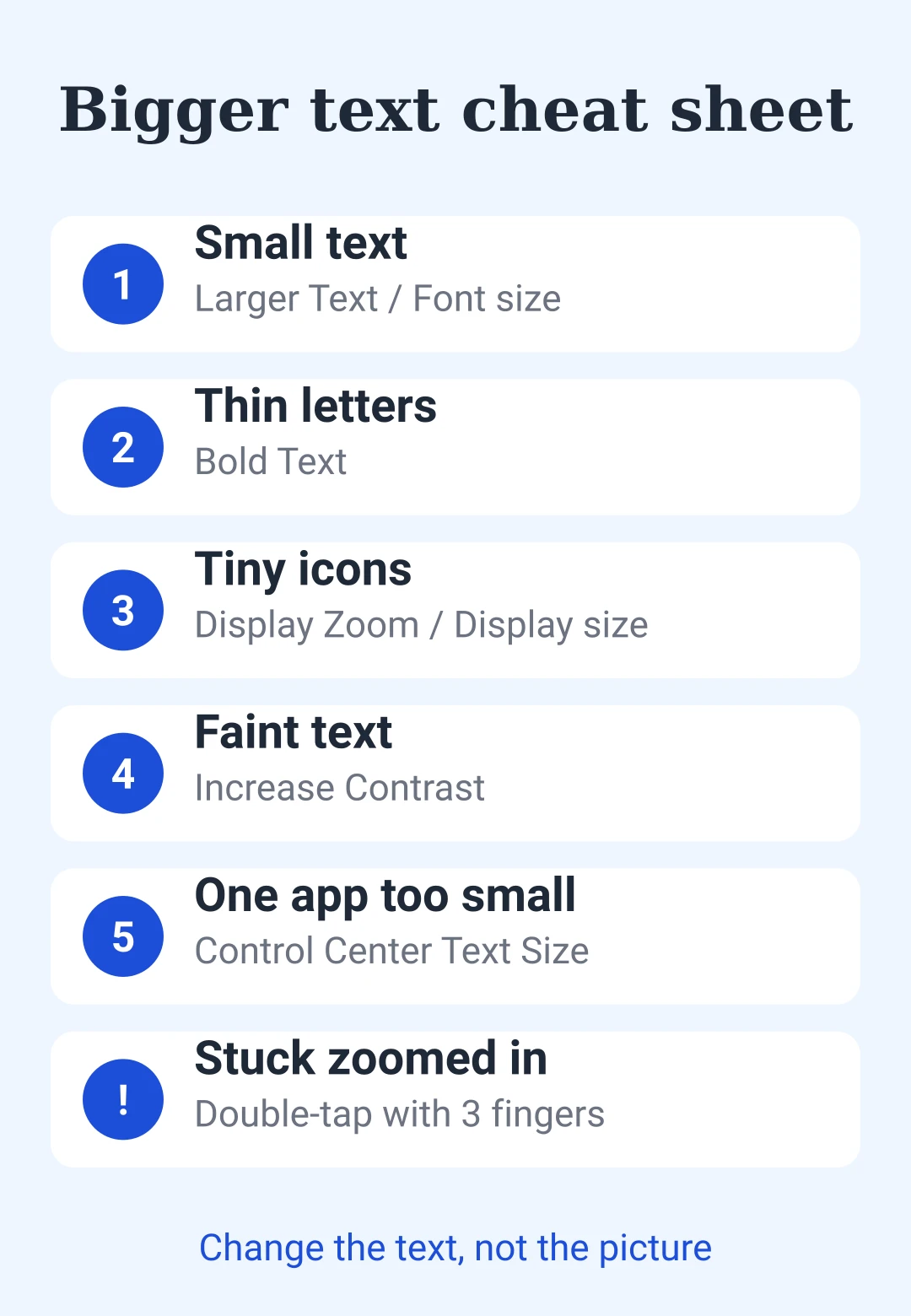
Save this: bigger text cheat sheet
| Problem | Setting to use |
|---|---|
| Small text | Larger Text / Font size |
| Thin letters | Bold Text |
| Tiny icons | Display Zoom / Display size |
| Faint text | Increase Contrast / High contrast text |
| One app too small | Control Center Text Size or Per-App Settings |
| Stuck zoomed in | Double-tap with three fingers |
- bigger text
- phone settings
- tablet settings
- accessibility
- iPhone
- Android
- reading glasses
- easy to read
喜欢这篇帖子吗?
后即可发表评论。
加载中…