
Computer Setup for Beginners: A Simple Checklist
Patricia Owens · 32 次观看 · 3周前 · 文章
A first-day checklist for a new Windows or Mac computer: updates, bigger text, strong passwords, two-step sign-in, backup and scam basics, in the order that works.
I'll confess it. My first laptop sat in its box for three weeks because the setup screens scared me silly.
If a new computer is waiting on your table too, here is a first-day checklist for updates, readable text, accounts and safety basics, in the order that works.
Before and after
Before: text so tiny it needed reading glasses and a squint, updates waiting, one old password for everything, and no copy of a single photo.
After: text readable from the armchair, every update installed, a strong password for each account, and files copied somewhere safe. Not fancy, just trustworthy.
Rewind: why the order matters
Plug in and join your Wi-Fi first. Then install updates, because they carry security fixes and may restart the machine several times. After that, make it comfortable, then lock it down.
Step by step, Windows and Mac
| Step | Windows 11 | Mac |
|---|---|---|
| Updates | Settings, Windows Update, Check for updates | System Settings, General, Software Update |
| Bigger text | Settings, Accessibility, Text size slider | System Settings, Accessibility, Display, Text size |
| Backup | Windows Backup app (to OneDrive) | Time Machine to an external drive |
Hidden tip: on Windows, press the Windows key and U together. It jumps straight to Accessibility, so no hunting for the text slider. That one went in my spiral notebook in big letters!
Passwords and scams
- Long and unique: CISA says at least 16 characters, or a passphrase of 4 to 7 unrelated words, with a different one for each account.
- A password manager (a program that makes and stores passwords) does the remembering. Many browsers include one.
- Two-step sign-in: turn it on for email first. It asks for a second check, like a code.
- Odd messages: the FTC says don't click links in unexpected emails or texts. Call the company on a number you know.
Hidden tip: set up Windows with a Microsoft account and device encryption (scrambling files so a thief can't read them) usually turns on by itself, with the recovery key saved to that account. Note down aka.ms/myrecoverykey. If the computer ever asks for that key, you'll know where to look.
The honest bill
Effort: one long afternoon, mostly waiting on updates. What went wrong: a password too clever to type the same way twice... What you can skip on day one: the wallpaper.
Save this: first-day checklist
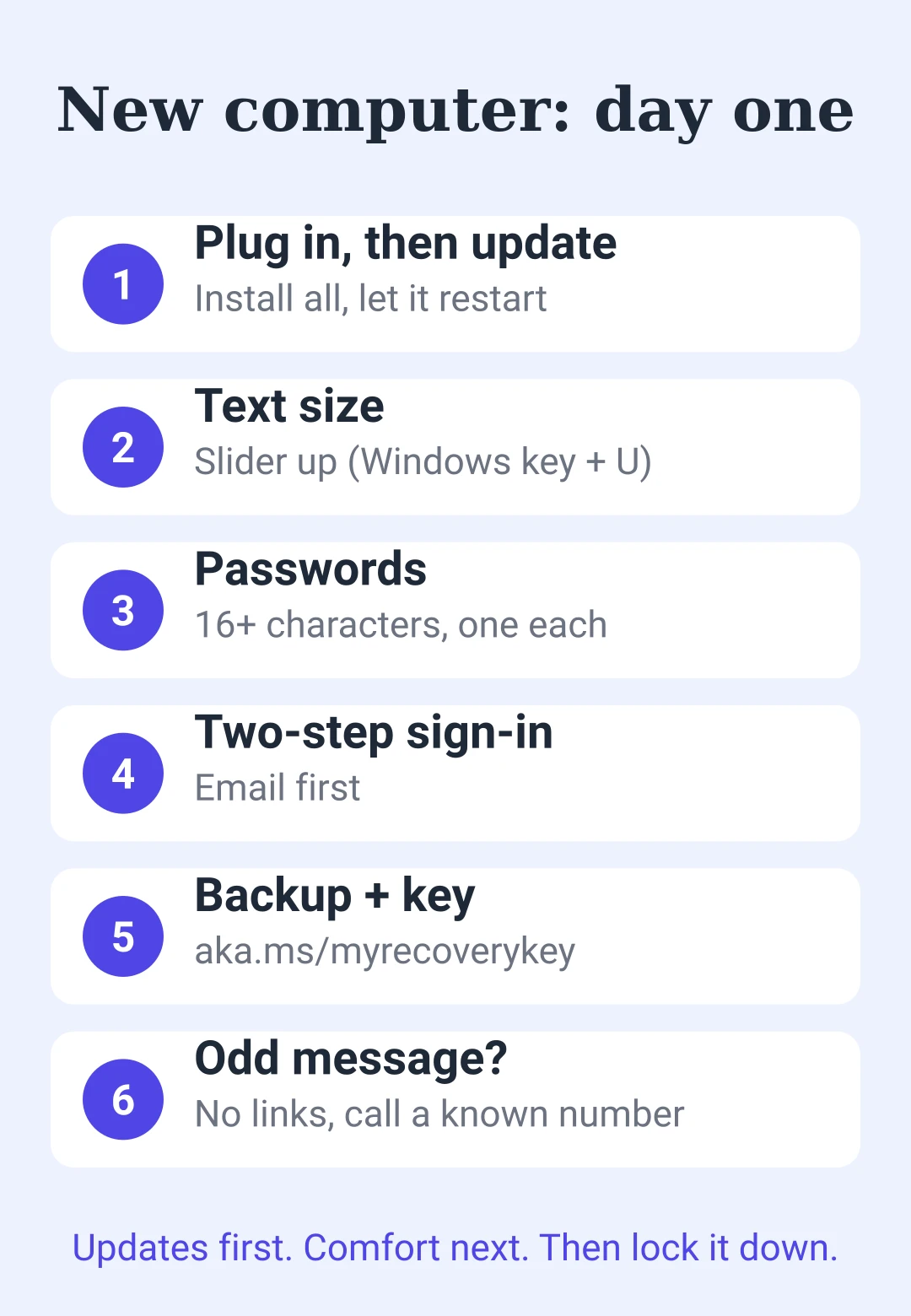
| Step | Do this |
|---|---|
| 1. Power and Wi-Fi | Plug in, join your network |
| 2. Updates | Install all, let it restart |
| 3. Text size | Slider up (Windows key + U) |
| 4. Passwords | 16+ characters, one per account |
| 5. Two-step sign-in | Email first |
| 6. Backup | Windows Backup or Time Machine |
| 7. Recovery key | Note aka.ms/myrecoverykey |
| 8. Scam check | No links, call a known number |
- computer setup
- beginners
- new laptop
- windows 11
- mac
- passwords
- online safety
- checklist
喜欢这篇帖子吗?
后即可发表评论。
加载中…