
How to Speed Up a Slow Laptop 🖥️🔥
A five-try challenge for a slow laptop: restart the right way, cut start-up apps, free storage, update, and keep heat down, with a cheat sheet to save.

Kenji Mori
2026年6月22日 · 阅读约 2 分钟
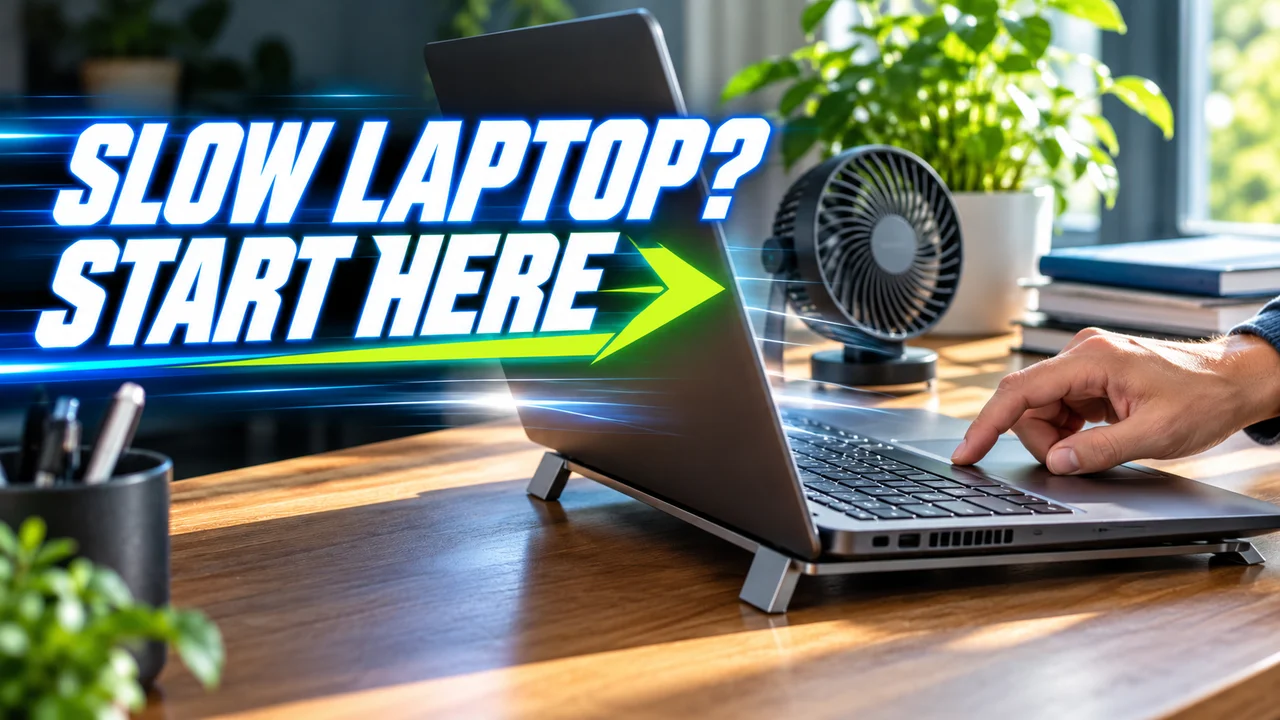
You open one browser window and the fan screams like a jet. The cursor spins and you start eyeing a new laptop.
Don't. The dare: five tries, one fix each, until it boots and switches apps without the wait. About ten minutes per try, zero tools. By try five, you'll know where your bottleneck lives.
Ground rules
- One fix per try. Change three things and you won't know which worked.
- Time it. Time a cold boot and your most-used app launching. That's your baseline.
- A try counts if you finish and re-time. Missed one? No starting over.
Try 1: restart, don't shut down
Close unused apps and tabs. Then pick Restart.
Hidden tip: on Windows, Shut down isn't a full reset. Fast Startup is on by default, so shutting down hibernates the system session to disk. Restart does a full boot cycle. Lowkey the easiest W here.
Check-in: snappier? Note it. Same? Move on.
Try 2: cut the start-up crowd
- Windows: press Ctrl + Shift + Esc, open Startup apps, right-click what you don't need, choose Disable.
- Mac: System Settings, General, Login Items. Select an app, click Remove.
Disabled apps still open when you click them.
Check-in: re-time the boot. It should land faster than your baseline.
Try 3: free up storage
Microsoft says plainly that low disk space can reduce performance.
- Windows: Settings, System, Storage, then run Storage Sense and clear temporary files.
- Mac: System Settings, General, Storage, then work through the recommendations.
Mac catch: files in the Trash still take space until you empty it.
Try 4: update and scan
Install pending updates, then run a quick scan. Windows: Windows Security, Virus & threat protection, Quick scan. Malware can quietly eat CPU and disk.
Try 5: check heat and power
Heat kills speed: processors cut their clock speed when they run too hot. Apple warns against using a laptop on a bed, pillow or under bedding. Use a hard, flat surface with clear vents.
On Windows, Settings, System, Power & battery, Power mode can go to Best performance. Trade-off: more battery drain and more heat.
The wobble
Around try three, everything feels fine until the browser opens. One heavy tab can hog the machine.
Hidden tip: Chrome has its own Task Manager. Press Shift + Esc on Windows, or open the menu, then More tools, Task manager. Sort by Memory footprint. Close the worst offender.
Finish line
Re-time boot and app launch. Compare with your baseline. My roommate's laptop went from coffee-break boot to sit-down boot after tries one and two. Barely moved? Older hardware may be at its limit.
Post your before and after times in the comments. Level two: uninstall every app you haven't opened in months.
Cheat sheet: speed up a slow laptop
| Try | Do this |
|---|---|
| Baseline | Time boot and one app launch |
| 1. Restart | Restart, not Shut down |
| 2. Start-up | Disable apps you don't need |
| 3. Storage | Clear temp files, empty Trash |
| 4. Updates | Install updates, quick scan |
| 5. Heat | Hard surface, clear vents |
| Browser | Shift + Esc, close the hog |
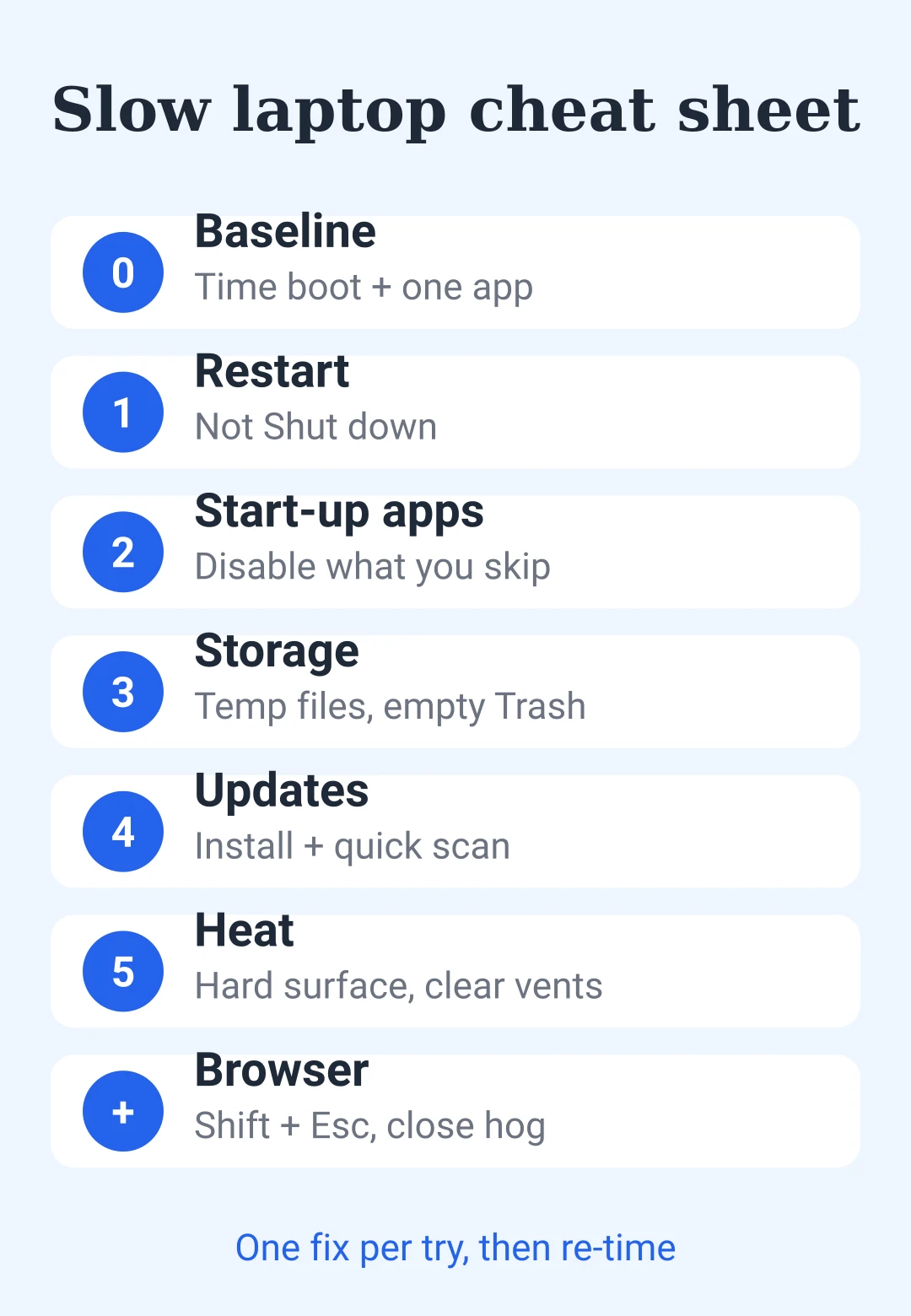
Five tries from slow to snappy. The first one is the only hard one.











后即可发表评论。
加载中…