⌚ How to Make Your Smartwatch Battery Last Longer
The notifications to turn off first, where the switch lives on Apple Watch, Wear OS, Galaxy and Garmin, two hidden settings, charging habits, and a cheat sheet to save.

Ruby Castillo
21 de junho de 2026 · 2 min de leitura
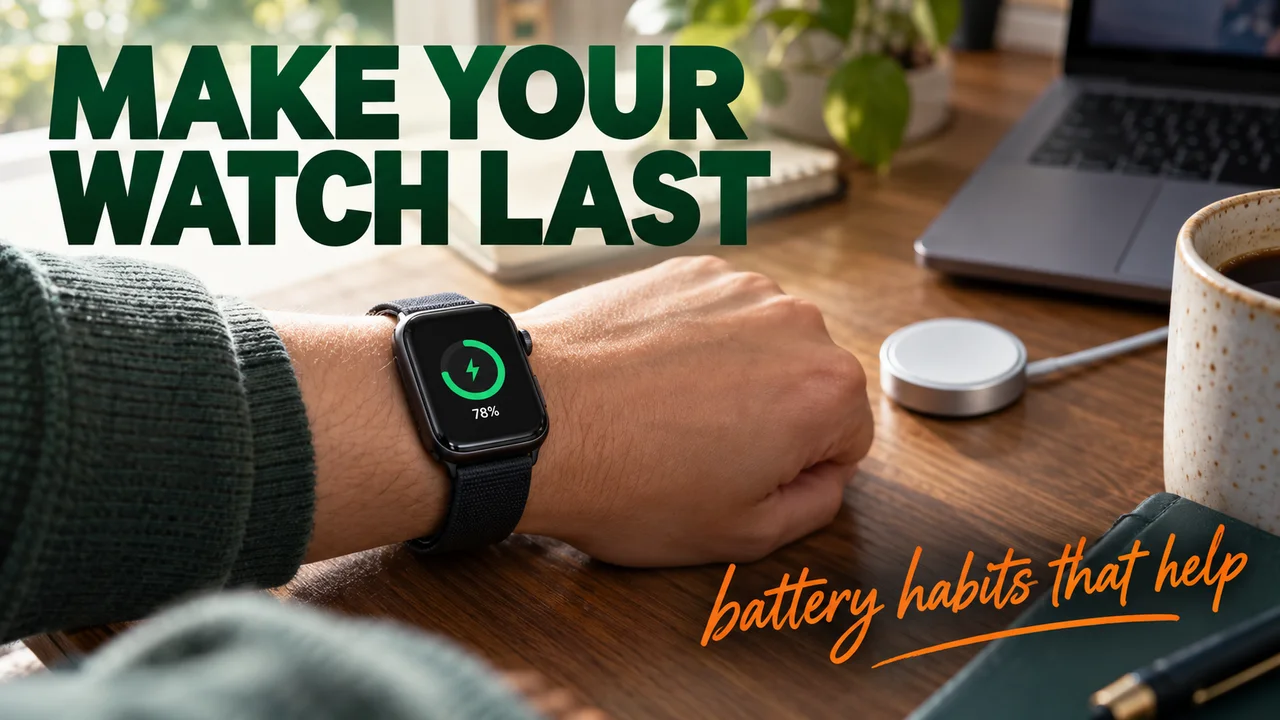
Your watch buzzes for a group chat, a sale, a like, a headline. Then it's dead before you are.
Unpopular opinion: the first fix isn't the screen. It's the notifications. Below = what to cut, where the switch lives, and two settings nobody touches.
The usual advice, at its best
To be fair, everyone says "turn off Always On" for a reason. Samsung's own support page says the always-on clock keeps using battery while the screen looks off. Google and Samsung both list switching it off as a battery saver, and Apple's Low Power Mode turns it off.
But Always On costs you something. Glance at your wrist, see nothing. Cutting junk alerts costs nothing.
Why notifications come first
- Every alert = screen on + a buzz. Garmin's manual lists limiting notifications and lowering vibration as separate battery tips. Two costs, one alert.
- Makers count them. Apple's all-day battery test literally includes a set number of notifications.
- Your phone already has them. On Apple Watch, alerts go to your iPhone while it's unlocked and to your wrist when it's locked. The wrist copy is optional.
The notifications to turn off first
| Turn off | Why |
|---|---|
| Shopping and promo apps | Never urgent |
| Social likes and follows | Can wait for your phone |
| Busy group chats | Buzz after buzz |
| News and sports alerts | Read them later |
| Games and streaming apps | Pure noise |
Keep: calls, texts from your favorite people, calendar, alarms and timers.
Where the switch lives
- Apple Watch: Watch app on iPhone, then My Watch, Notifications, pick the app. Choose Custom, then Notifications Off, or flip it off under "Mirror iPhone Alerts From".
- Wear OS, Galaxy, Garmin: open the watch's companion app on your phone and find its notification list. Garmin's manual says to limit them in your phone's notification settings.
Hidden tips
- Hidden tip 1: your watch face can undo Background App Refresh. Apple's guide says apps with complications on the current face keep refreshing even with that setting off. A face packed with live widgets = always working.
- Hidden tip 2: palm = instant sleep. On Galaxy watches, covering the screen with your palm turns it off right away.
Charging habits that help
- Apple's Optimized Battery Charging can hold the battery at 75–80% for a while before finishing the charge. Need 100% now? Tap Charge to Full Now.
- Pixel Watch has Battery Defender, which pauses charging if the watch sits on the charger for days.
- Low battery? Apple offers Low Power Mode at 10%. Pixel's Battery Saver turns on by itself at 15%.
Where I'll give ground
If your watch is old, cutting notifications won't fix a tired battery. And if you rely on it for safety alerts, keep those on. I'm not saying go silent. I'm saying go picky. My own wrist went from buzzing through a whole dance rehearsal to buzzing for, like, my mom.
One week. Mute the five types above, change nothing else, and watch your evening battery. Unpopular, yes. Wrong? Try it.
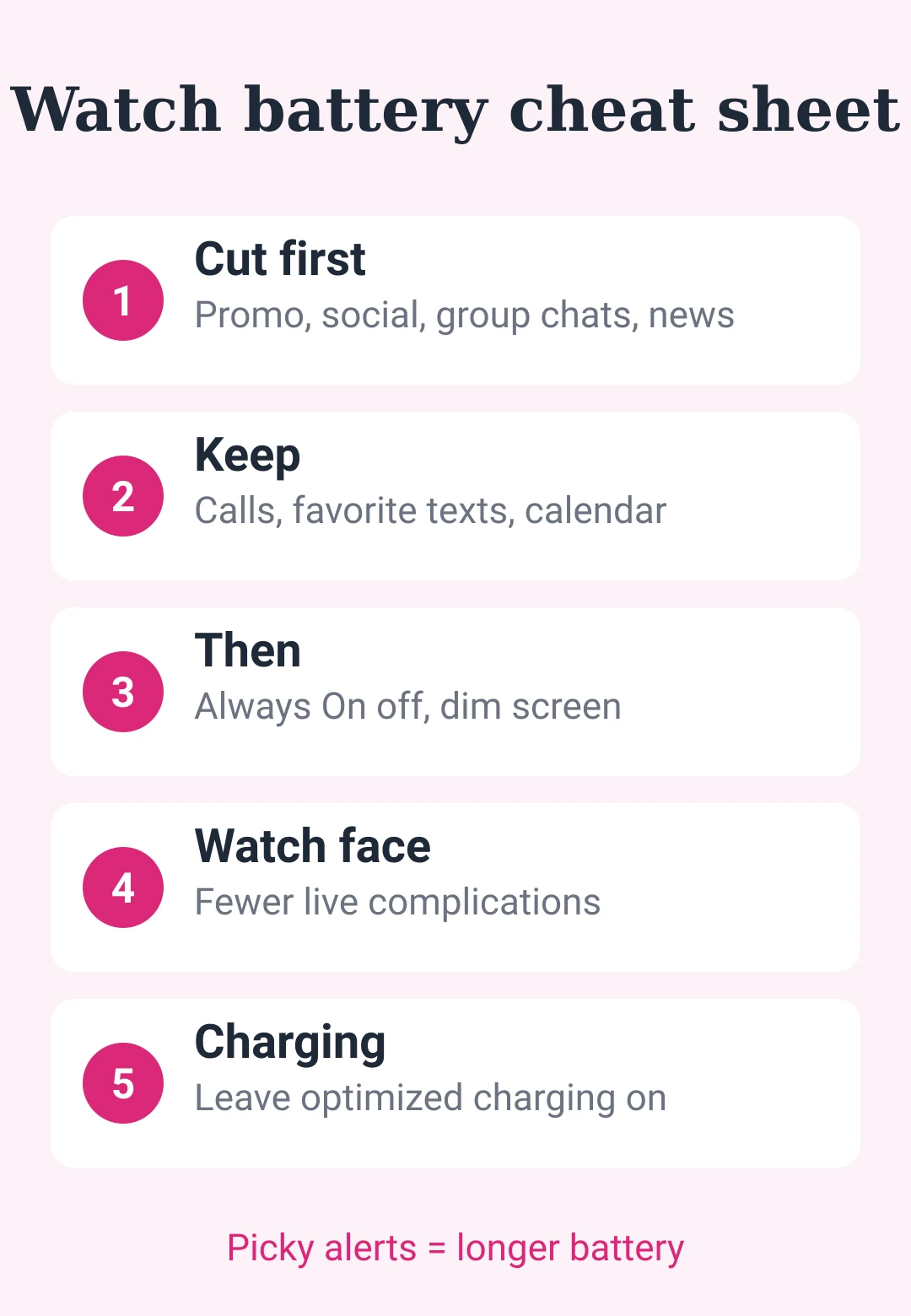
Save this: smartwatch battery cheat sheet
| Do | How |
|---|---|
| Cut first | Promo, social, group chats, news, games |
| Keep | Calls, favorite texts, calendar, alarms |
| Then | Always On off, lower brightness |
| Watch face | Fewer live complications |
| Vibration | Lower it if your watch allows |
| Charging | Leave optimized charging on |
| Running low | Switch on the power-saving mode |








para deixar um comentário.
Carregando…