
How to Make Your Phone Battery Last Longer: 9 Tips
Nine charging habits and settings that slow battery wear and stretch each charge, from a phone repair tech, with a cheat sheet to save.

Victor Petrov
11 de julio de 2026 · 3 min de lectura
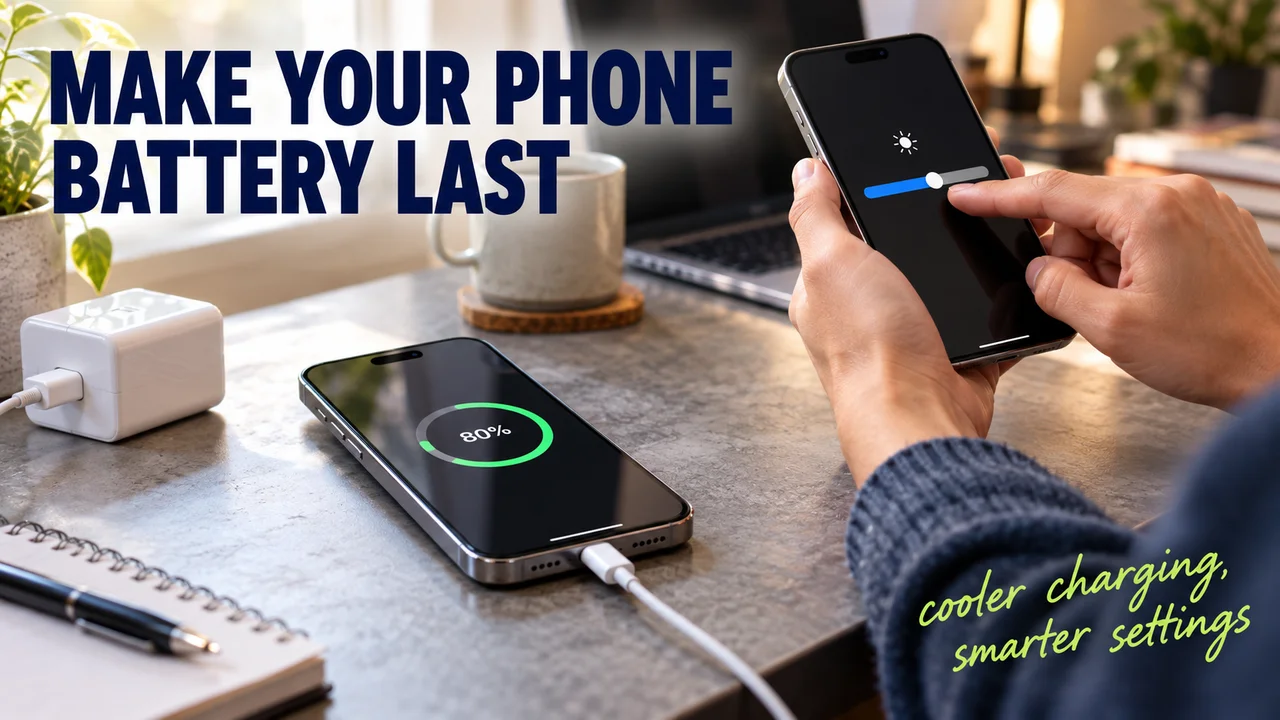
Your phone leaves the charger at 100% and is begging for an outlet before you get home. Some of that is the battery aging, and some of it is settings you can change today.
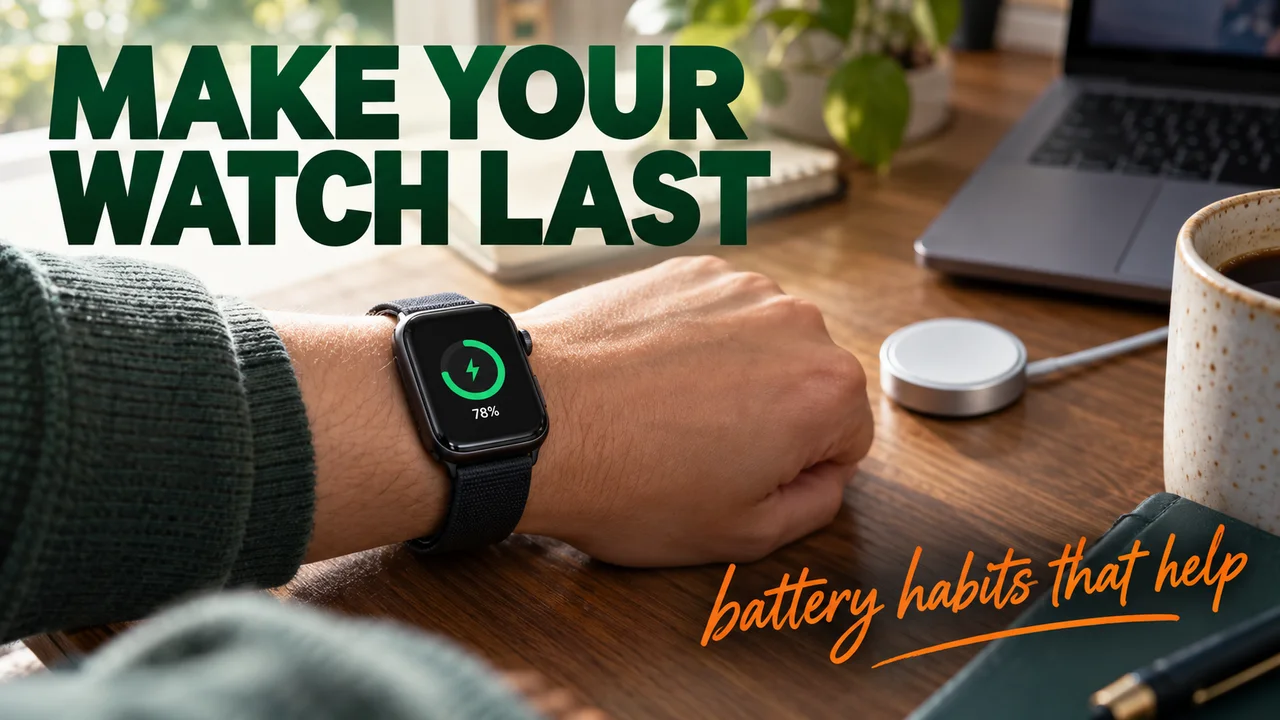
Here are nine charging habits and settings that slow battery wear and stretch each charge.
Before and after: one phone on my bench
Before: my son Nikolai's phone. Charged to 100% nightly in a thick case, screen at full brightness, a dozen apps refreshing in the background. It came off the charger warm and died before he got home.
After: same phone. Charge limit on, case off when it charges hot, auto-brightness, a few apps with background time. It gets through his day now. Not a new battery: an old one treated better.
Rewind: the nine changes
Charging habits (slow the wear)
- Turn on a charge limit. On iPhone 15 and later, set it between 80% and 100% in Settings > Battery > Charging. Pixel 6a and later offer "Limit to 80%" under Battery health > Charging optimization. Newer Galaxy phones: Battery protection, Maximum, stops at 80%.
- Top up whenever you like. Lithium-ion has no memory, so partial charges are fine. Running it to zero is what hurts.
- Keep it cool. Apple names 62 to 72°F (16 to 22°C) as the comfort zone and warns against above 95°F (35°C).
- Take the case off if it charges hot. Apple says some cases trap heat during charging, and heat costs capacity.
Settings (stretch each charge)
- Use auto-brightness. A brighter screen drains the battery faster, in light or dark mode.
- Use dark mode outdoors. Hidden tip: indoors it barely helps. A Purdue study of OLED phones found it saved only 3 to 9% of power at typical auto-brightness, but 39 to 47% at full brightness, which is where your screen sits in sunlight.
- Use Low Power Mode or Battery Saver on long days. It dims the screen and stops background downloads.
- Trim Background App Refresh. Keep it for messages and maps, cut the rest.
- Set Location to "While Using" for each app instead of "Always".
Hidden tip: on a Pixel with "Limit to 80%" on, the phone still charges to full every tenth cycle to keep its reading accurate; Google says leave it plugged in 30 minutes past 100%.
The bill
Effort: ten minutes in Settings. Spend: nothing. What went wrong: Nikolai left Low Power Mode on and his email ran late. Skip: dark mode, if you stay indoors.
Side by side
Heat and time at full charge wear a battery most. Check yours first: Settings > Battery > Battery Health on iPhone. Apple rates iPhone 15 and later to keep 80% capacity at 1,000 full cycles, and earlier models at 500. If yours reads well below 80% and the rest of the phone is fine, a new battery is worth fixing.
Spare phone in a drawer? Apple suggests storing it at about 50%.
Cheat sheet: battery that lasts
| Do this | Why |
|---|---|
| Charge limit on (80%) | Less time at full charge |
| Top up anytime | No memory; avoid zero |
| Keep it 62–72°F | Heat ages the battery |
| Case off if hot | Lets heat escape |
| Auto-brightness | Brighter drains faster |
| Dark mode outdoors | Big savings when bright |
| Low Power Mode | Stops background work |
| Trim background refresh | Fewer apps awake |
| Location "While Using" | GPS only when needed |
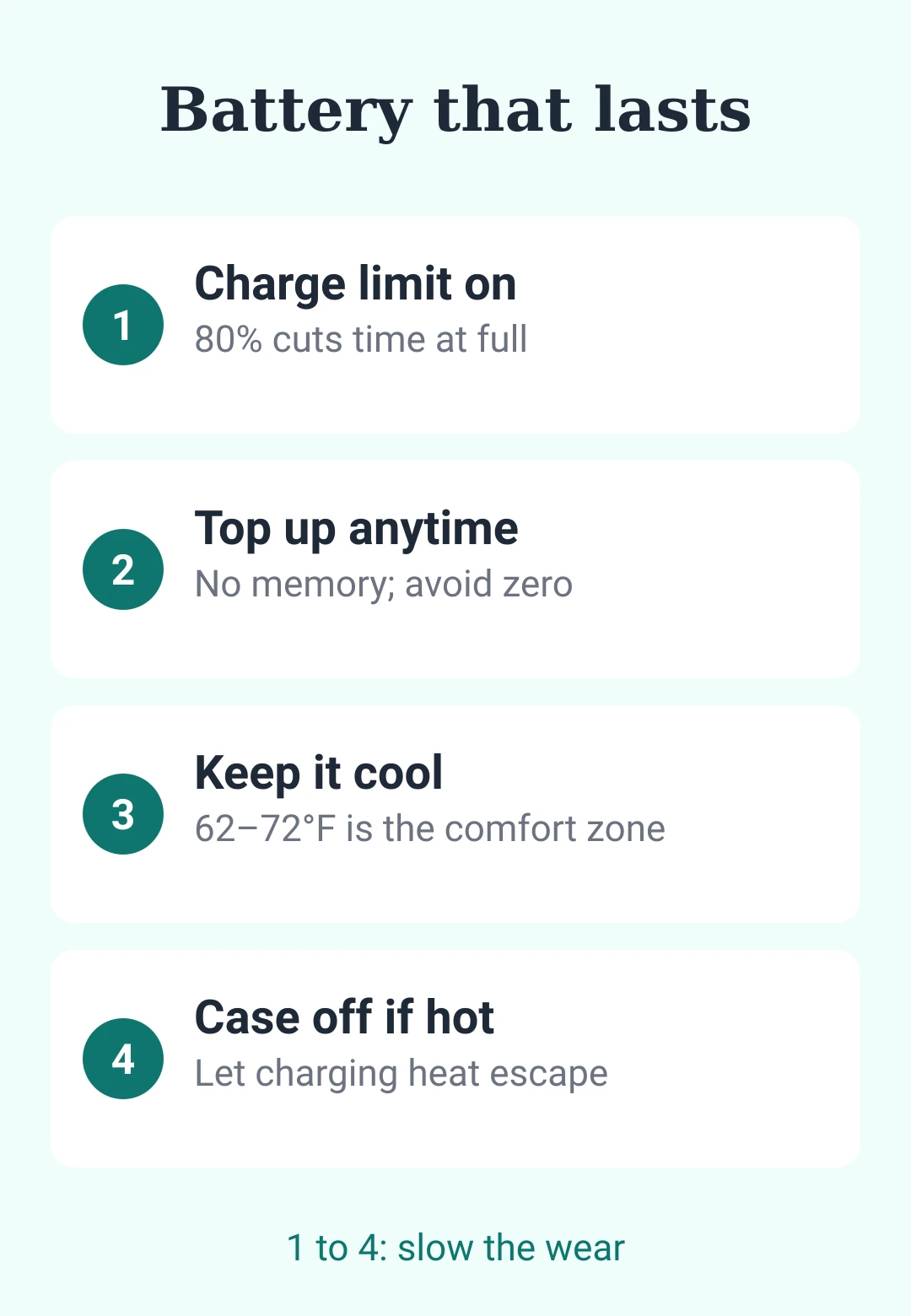
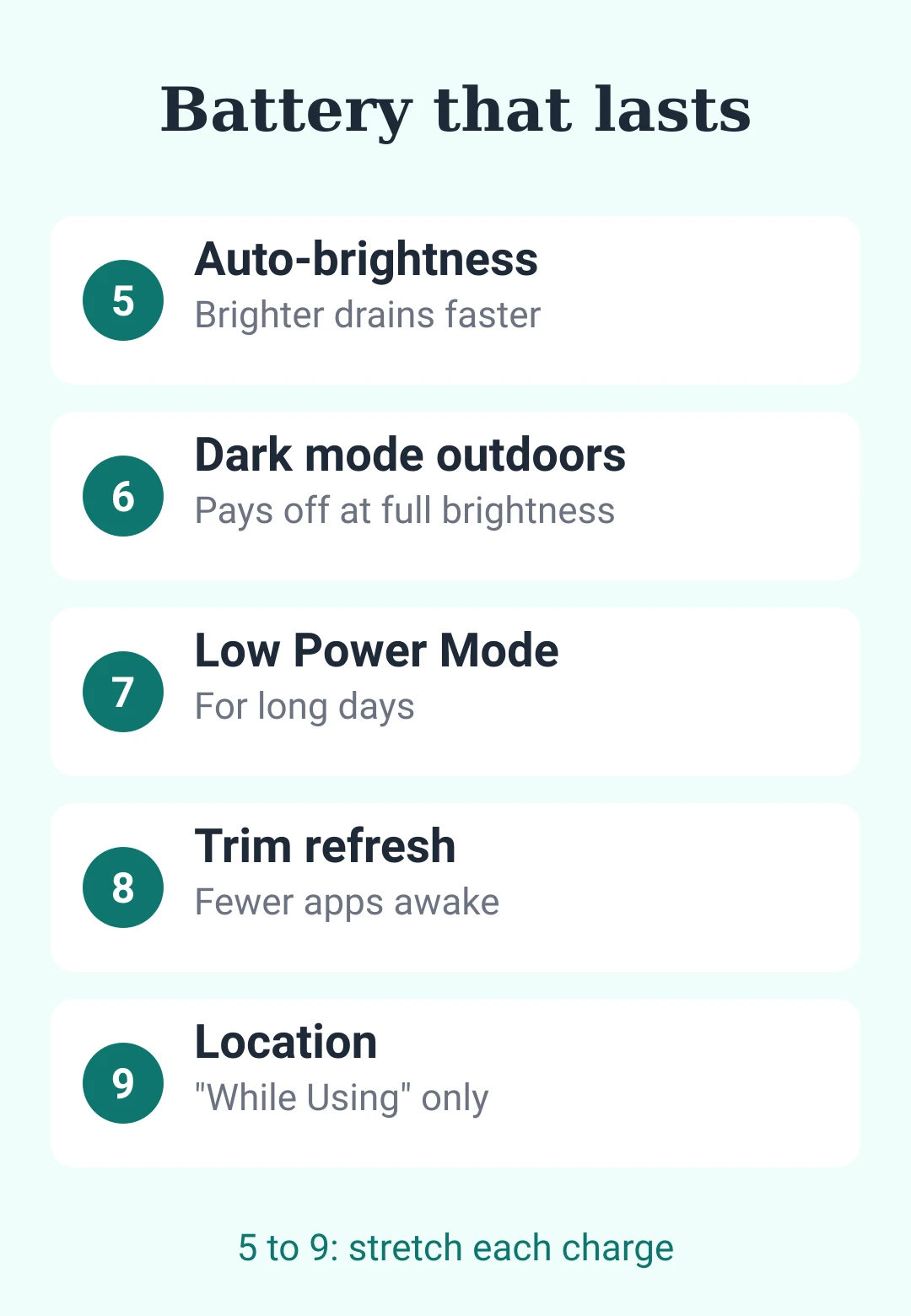
Save this for the next time the battery icon turns red.







para dejar un comentario.
Cargando…